

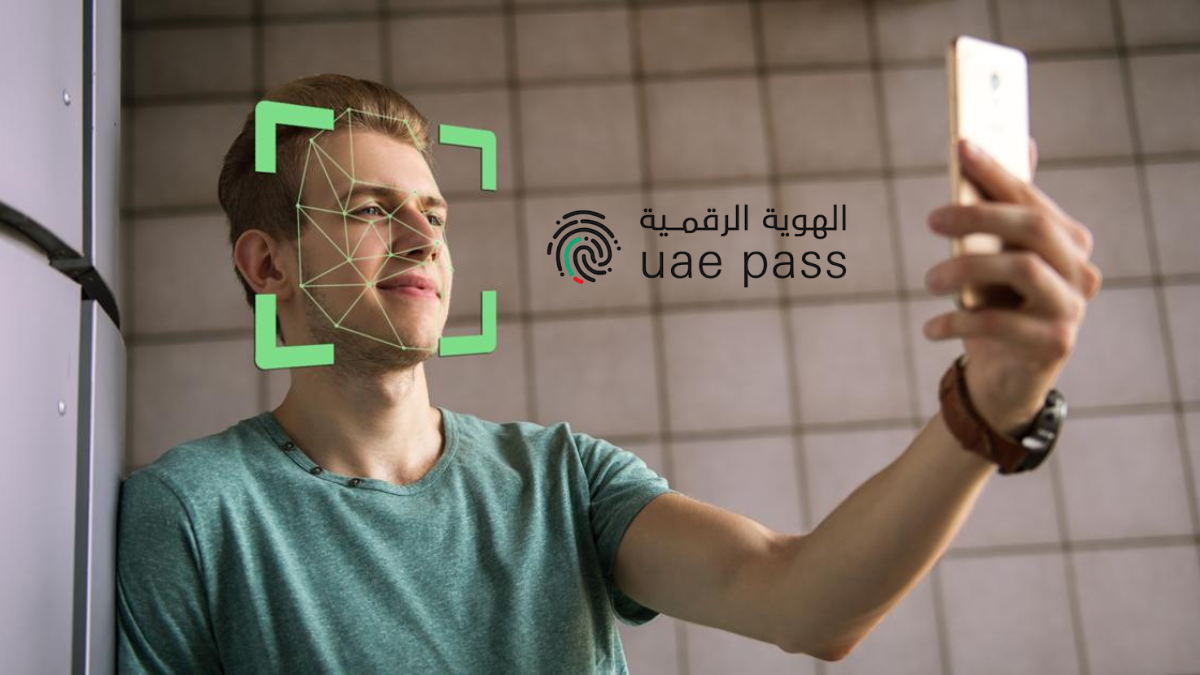
If UAE PASS Face Verification Failed, you may be unable to access government, banking, or other digital services that require UAE PASS authentication. Common causes include poor lighting, an unstable internet connection, camera issues, or problems with your UAE PASS account or Emirates ID information. In many cases, the issue can be resolved within a few minutes by following a few simple troubleshooting steps.
Quick Answer
UAE PASS face verification usually fails because of poor lighting, camera issues, an unstable internet connection, or problems with your UAE PASS account. Try again in good natural light, hold your phone steady at eye level, clean the camera lens, and update the UAE PASS app. Also, make sure your Emirates ID and UAE PASS account details are current. If verification still fails, check whether another verification option is available in the app or contact UAE PASS support.
What Does “Face Verification Failed” Mean?
UAE PASS uses facial recognition to confirm that the person using the app matches the official identity records linked to their account through the Federal Authority for Identity, Citizenship, Customs and Port Security (ICP). If the app can’t confidently match your live face scan to those records, it may display a “Face Verification Failed” or “Identity Verification Failed” message.
In most cases, this is part of the identity verification process rather than a system error, although temporary technical issues can also cause failures. Common reasons include poor lighting, an incorrect camera angle, camera quality issues, or outdated or inconsistent identity records.

Common Reasons Why UAE PASS Face Verification Fails
Poor lighting Dim rooms, strong backlighting, or shadows across your face are among the most common reasons face verification fails. For the best results, use bright, even lighting and keep your face fully visible.
Low camera quality or a dirty lens A smudged front camera lens or a low-quality camera can reduce image clarity, making it harder for the app to verify your identity accurately. Clean the lens before trying again.
Issues with your Emirates ID or identity records If your Emirates ID has been renewed recently or your identity records haven’t been updated or synchronized with your UAE PASS account, the verification process may not match your current information correctly.
Changes in your appearance Wearing a face mask, hat, or sunglasses—or having significant changes to your hairstyle or facial hair compared with your official photo—can make facial recognition more difficult.
Device compatibility or software limitations Older smartphones, outdated operating systems, or unsupported devices may not provide the camera performance needed for reliable face verification.
Weak or unstable internet connection Face verification requires a stable internet connection. If your connection drops or is too slow, the verification process may fail or time out.
Outdated UAE PASS app Using an older version of the UAE PASS app can lead to compatibility issues or bugs that have already been fixed in newer updates. Make sure you’re running the latest version.
Camera permission disabled UAE PASS requires access to your phone’s camera to perform face verification. If camera permission is disabled, the verification process cannot be completed until access is granted.
How to Fix UAE PASS Face Verification Failed
Work through these steps in order — most users solve the problem within the first three.
1. Improve your lighting and positioning. Move to a well-lit room, face a light source (like a window) rather than having it behind you, and hold the phone at eye level about 30–40 cm from your face.
2. Clean your camera lens. Wipe the front camera with a soft cloth to remove smudges, dust, or fingerprints that could blur the image.
3. Remove glasses, masks, or hats. Take off anything covering your face and pull hair away from your forehead so the scan has a clear, unobstructed view.
4. Check your internet connection. Switch to a stable Wi-Fi network or strong mobile data signal before trying again, since a weak connection often causes the scan to time out.
5. Update the UAE PASS app. Go to the App Store or Google Play, check for updates, and install the latest version before retrying.
6. Restart the app and your phone. Close UAE PASS completely, restart your device, and reopen the app to clear any temporary glitches.
7. Check camera permissions. On iPhone, go to Settings > UAE PASS > Camera and make sure access is turned on. On Android, go to Settings > Apps > UAE PASS > Permissions and enable Camera.
8. Check your Emirates ID and UAE PASS account details. Make sure your Emirates ID is valid and that your UAE PASS account reflects your current identity information. If you recently renewed your Emirates ID or updated your official records, it may take time for the changes to be reflected. If the issue persists, contact UAE PASS support.
9. Try a different device. If possible, complete the verification on another compatible smartphone. This can help determine whether the issue is related to your original device’s camera or software.
What to Do If the Problem Continues
If you’ve tried the steps above and face verification still fails, avoid making repeated attempts in quick succession, as repeated failures may temporarily restrict further verification attempts for security reasons.
Instead, open the UAE PASS app and check whether another verification option is available for your account. The available verification methods vary depending on your account and the service you’re trying to access.
If the issue persists, contact UAE PASS support through the official UAE PASS app or website for assistance. If the problem is related to your official identity records or recent updates to your Emirates ID information, you may be asked to update your details through the Federal Authority for Identity, Citizenship, Customs and Port Security (ICP) or an authorized service center before attempting verification again.

Contact UAE PASS Support If:
- Verification fails for more than 24 hours despite trying the troubleshooting steps above.
- Your Emirates ID has already been renewed or updated, but the issue continues.
- The app crashes repeatedly during the verification process.
- The camera never opens or the screen freezes when you try to scan.
- Your account becomes locked after multiple failed attempts.
Can You Use UAE PASS Without Face Verification?
For most government and banking services, face verification is a mandatory step because it confirms you are the legitimate ID holder. However, some initial registration or login flows allow alternative methods, like SMS OTP, especially for lower-risk actions. High-security transactions, such as signing official documents or accessing sensitive government portals, will almost always require successful face verification.
Tips to Avoid Future Verification Problems
Keep your Emirates ID details and photo up to date, especially after a renewal or a major change in appearance. Always scan your face in daylight or well-lit indoor conditions rather than at night or in dim rooms.
Keep the UAE PASS app updated to the latest version at all times. Avoid wearing glasses, hats, or masks during the scan, and make sure your phone’s camera lens is clean before every attempt.
Frequently Asked Questions
1. Why does UAE PASS keep failing my face scan even in good lighting? Even in good lighting, face verification can fail due to a dirty camera lens, an outdated UAE PASS app, device compatibility issues, a poor internet connection, or issues with your identity records. If it still fails, contact UAE PASS support.
2. Can I use UAE PASS with an expired Emirates ID? No. An expired Emirates ID can cause verification mismatches, so you should renew it before attempting face verification again.
3. Does wearing glasses affect UAE PASS face verification? Yes, glasses can interfere with the scan, especially if they weren’t worn in your Emirates ID photo. Remove them before trying.
4. What should I do if UAE PASS locks me out after multiple failed attempts? Wait before retrying, and contact UAE PASS support if the lockout doesn’t clear on its own after some time.
5. Is UAE PASS face verification mandatory for all services? It’s required for most high-security government and banking services, though some lower-risk actions may allow SMS OTP instead.
Conclusion
If you’re facing the UAE PASS Face Verification Failed error, the issue is often caused by simple factors such as poor lighting, camera permissions, outdated app versions, or Emirates ID verification problems. In many cases, following the recommended troubleshooting steps can help you complete the verification process successfully.
If the problem continues after trying all the available solutions, contact UAE PASS support or the relevant government authority for further assistance. Since the app and verification procedures may change over time, always check the latest guidance through the official UAE PASS platform before attempting the process again.
Official Resources
For the latest updates and assistance, refer to these official platforms:
- UAE PASS Official Website: https://uaepass.ae/
- ICP Smart Services: https://smartservices.icp.gov.ae/
- UAE PASS Support: Available through the UAE PASS app or the official website’s support section.